Device Management
Everything else in vConfig keys off the device list: backups, topology, monitoring, inventory and DCIM all read from it. It is worth getting right.
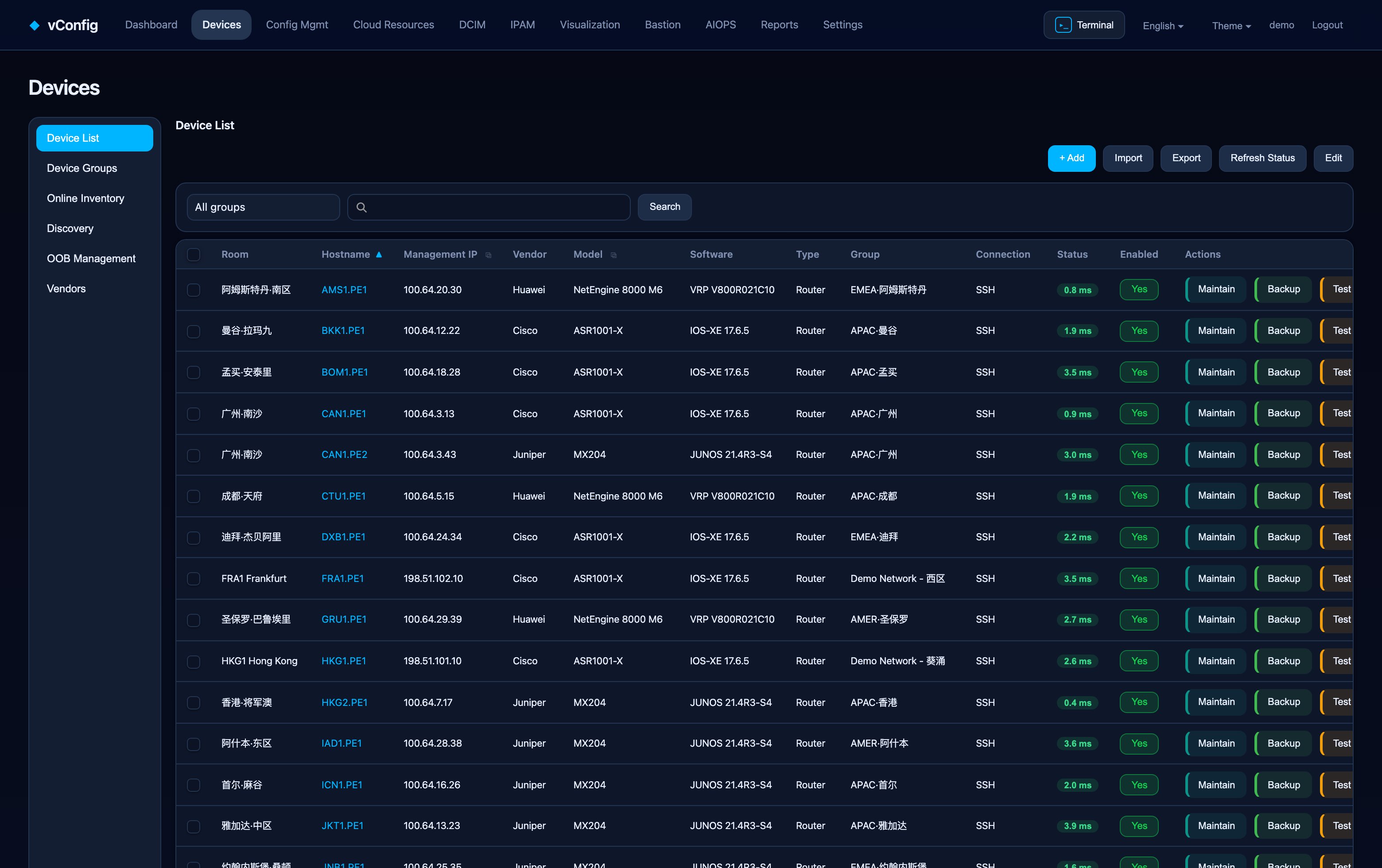
Device Management is a hub with six sub-pages, on the left of the screen:
| Sub-page | Purpose |
|---|---|
| Device list | The inventory itself |
| Device groups | Grouping for scheduling, permissions and reporting |
| Online inventory | Live hardware/module/serial collection |
| Auto-discovery | Find devices by scanning IP ranges over SNMP |
| Out-of-band | Console servers and OOB console access |
| Vendor settings | Login procedure, command set and output format per vendor |
Adding a device
Click + Add and fill in:
| Field | Notes |
|---|---|
| Hostname * | Must match what the device calls itself — backup filenames and neighbor matching both use it |
| Management IP * | Where vConfig connects |
| Vendor * | Drives which command set is used; see Vendors |
| Model / Software version | Filled in automatically by online inventory if you leave them blank |
| Type * | Router / switch / firewall / … — used for grouping and reporting |
| Group | See below |
| Data center | Chosen from the rooms defined in DCIM — one source of truth, not free text |
| Connection type | SSH, Telnet, or automatic fallback |
| SSH / Telnet port | Defaults 22 / 23 |
| Enabled | A disabled device stays in the inventory but is skipped by every scheduled job |
| Dedicated username / password | Optional per-device credentials that override the global ones |
Credentials: two layers
vConfig looks for credentials in this order:
- Per-device credentials, if the device has them.
- Global credentials, from Settings → Backup settings → Connection & credentials.
Set the global pair once and only fill in per-device credentials for the exceptions. The same two-layer rule is used by every feature that logs into a device — backup, inventory, SLA probes, config push and the web terminal — so you configure it once.
SSH ⇄ Telnet fallback
Set Connection type to automatic and vConfig tries SSH first, then Telnet. Useful for a fleet that is halfway through an SSH migration. The fallback is a single global switch (Settings → Backup settings) shared by all login-based features.
Bulk import and export
Import takes a CSV or Excel file. Download the template from the import dialog — it has the exact column names. The importer:
- reports per-row errors instead of failing the whole file,
- respects your licensed device cap (rows past the cap are skipped with a clear message rather than silently dropped),
- can update existing devices matched by management IP.
Export gives you the current list, filters included, as a spreadsheet.
Device groups
Groups are used for three different things, which is why they are worth planning:
- Scheduling — back up the core at 01:00 and the access layer at 03:00.
- Permissions — a role can be limited to specific groups, so a regional team only sees its own devices.
- Reporting — the dashboard's 24h success rate by group card, and most reports, break down by group.
Online inventory
Select devices and click Inventory selected, or let the scheduled job run. vConfig logs in, runs the vendor's inventory command and records component type, name, model, serial number and port.
This gives you:
- an asset register that matches reality rather than a spreadsheet,
- duplicate serial detection — tick Show duplicate serials only to find modules that appear in two places, which is nearly always a data-entry error or a swapped-and-not-updated RMA,
- optics and module data for DCIM.
Device detail
Click a hostname to open the device page: basic information, running state and performance, backup history, config baseline and drift, and collected components. Set as baseline on this page is what drift detection compares against.
Status refresh
Refresh status probes reachability now. Scheduled probing and its interval are configured under Settings → Monitoring settings → Device inventory settings.