Network Topology
The point of the topology module is that nobody draws the map. It is generated from what the network says about itself, and it stays current because the sources underneath it stay current.
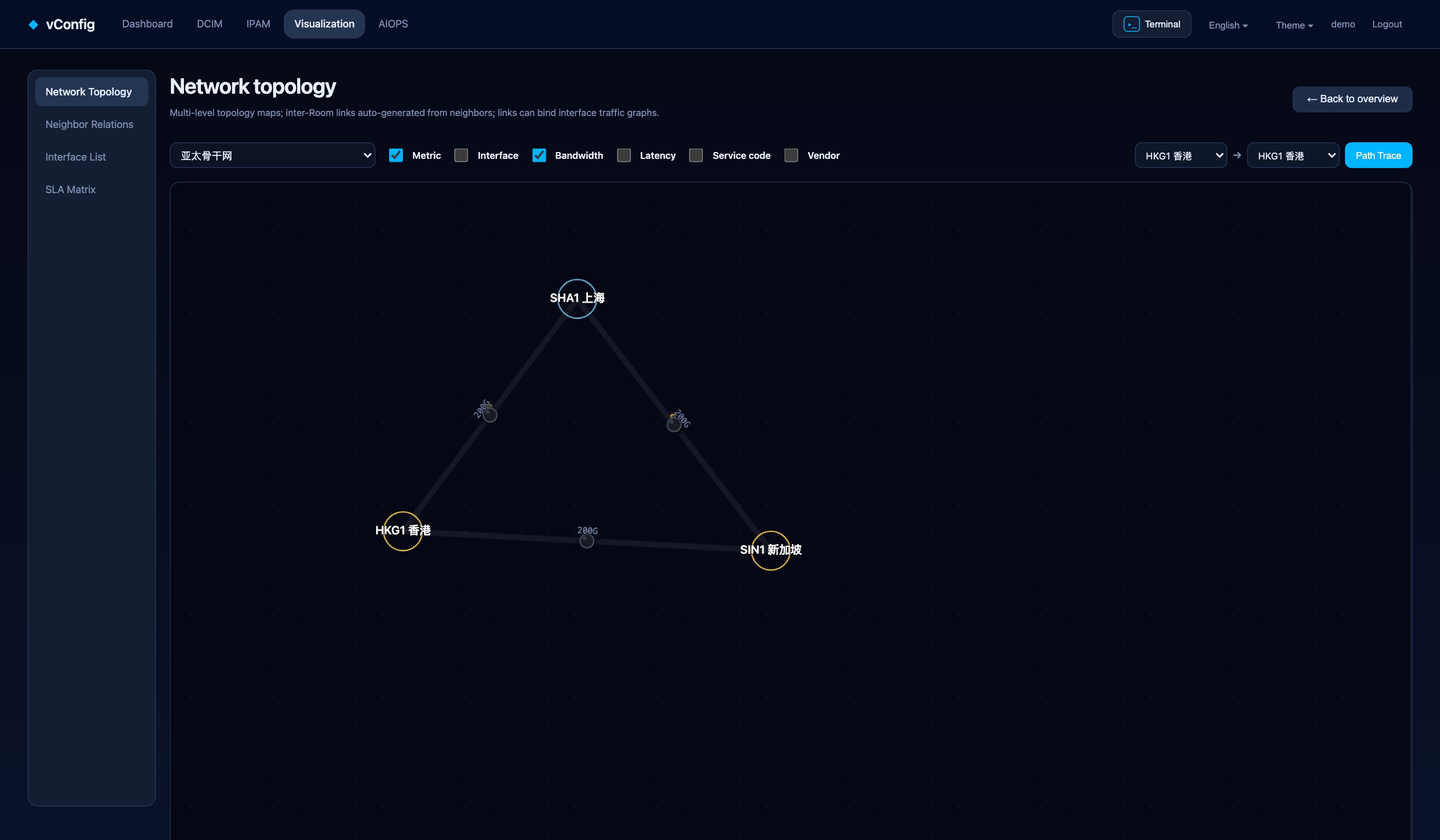
Where the map comes from
| Source | Notes |
|---|---|
| Config parsing | OSPF / IS-IS adjacencies extracted from the latest backups — no extra load on the device |
| BGP-LS | Optional live link-state collection from one or more topology source devices, merged with IS-IS state |
| CDP / LLDP | Layer-2 neighbors collected by login |
| Manual | Hand-maintained links for what cannot be discovered — dark fibre, third-party circuits |
Sources are configured under Settings → Neighbor settings, and the resulting adjacency table is the Neighbor Relations page.
The overview
The landing page is a wall of thumbnails, one per map, each with its node and link counts. Click one to open it. Link colours follow live interface utilization, so a wrong-looking map is visible from across the room.
Inside a map
The toolbar above the canvas toggles what each link is labelled with: Metric, Interface, Bandwidth, Latency, Service code, Vendor. Turn on only what you are looking at — a map with six labels per link is unreadable.
The legend at the bottom maps colour to utilization: no traffic, <1%, 1–10%, 10–25%, 25–40%, 40–55%, 55–70%, 70–85%, ≥85%, and capacity unknown. "Capacity unknown" means the interface speed is not known, so utilization cannot be computed — usually a missing SNMP poll rather than a real problem.
Multi-level maps
Group devices into POP nodes and inter-POP links are generated automatically from the neighbor table. Drill down from the backbone view into a per-POP or per-room sub-topology. A link can be bound to an interface traffic graph, so clicking it opens the real history rather than a live-only reading.
Editing
Edit unlocks the canvas: Add node, Add link, drag to arrange, then Save topology. Node positions are stored per map. Sync neighbors pulls in newly discovered adjacencies without disturbing your layout.
Automation rule keeps a map populated automatically — define the membership rule once and new devices appear on the right map as they are added.
Path Trace
Pick a source and a destination and Path Trace highlights the route across the map. It is the fastest way to answer "which of these links is in the path" during an incident, and to show a customer which sites their circuit actually crosses.